
Before installation
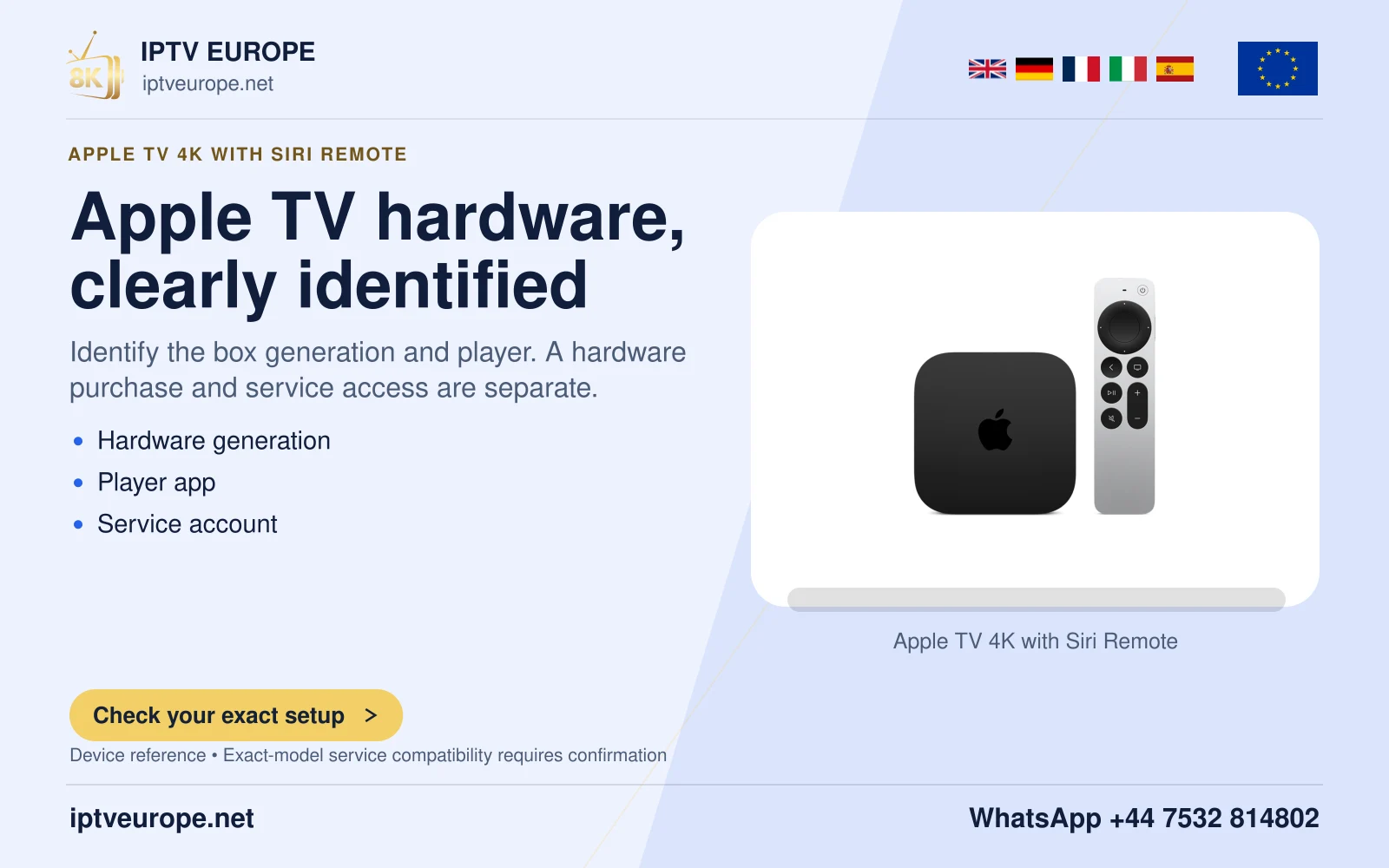
- Apple TV 4K or HD, not the older third-generation Apple TV.
- Apple account, network and enough storage.
The documented route
- Open App Store and search for the real television player.
A tvOS listing is visible.
- Check publisher and actual price; select Get or the displayed amount and authenticate.
The app appears on the Apple TV Home Screen.
- Use the player’s documented network-media controls. VLC is one publisher-documented tvOS option.
The correct source format is entered in the correct application.
- Test a short sample and verify audio/subtitles before relying on a full programme.
An installation success is not confused with complete media compatibility.
When something differs
- No App Store on a third-generation Apple TV means the hardware cannot add new apps through this route.
- Check app limitations before using AirPlay; some video apps do not permit it.
- A missing tvOS listing is not fixed with an iPhone APK or another device’s store link.
Player & service information
Official player-source guidance · Request a one-day trial · Setup support
Questions answered
Does installing a player activate service access?
No. Software installation and service access are separate. Use the source format supported by the chosen app and the details confirmed for your own account.
Should I use instructions for another platform?
Use the exact operating system and model. A similar brand name or product image does not make package formats and app stores interchangeable.
Sources & further reading
Official references for the subjects discussed. Service terms and device software can change.