
EUR full-term totals: 1 month €8.99 · 3 months €21.99 · 6 months €35.99 · 12 months €49.99 Compare plans →
Menu

Device workflows

Siri Remote settings: tune the clickpad and TV button

Adjust touch tracking, Click Only and the TV-button destination for predictable Apple TV navigation.

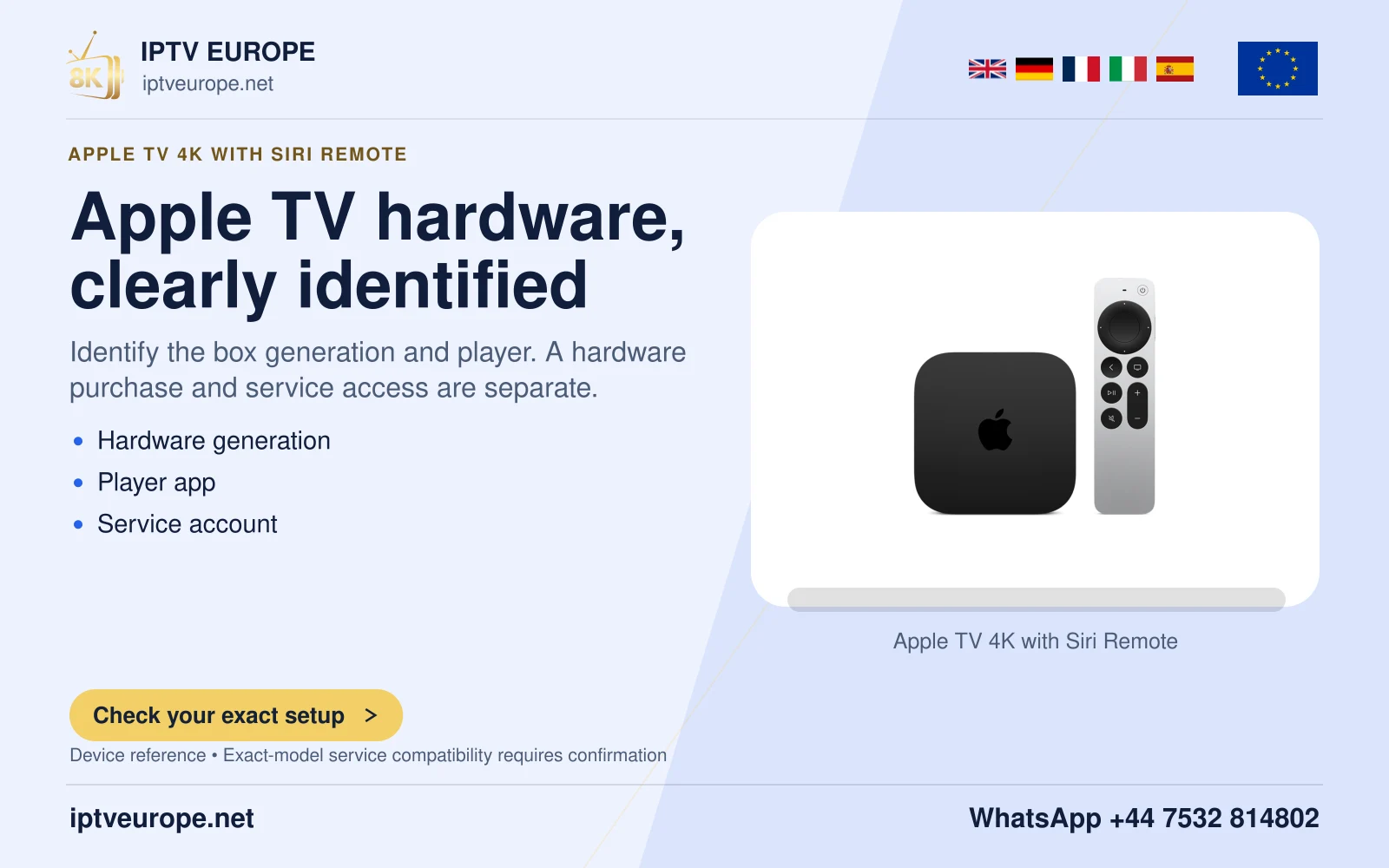
Apple TV hardware, clearly identified

Change the control that causes the problem

Apple TV offers separate remote settings for touch tracking and the TV-button destination. Open Settings, Remotes and Devices to inspect them. On the silver remote, Click and Touch allows swipes as well as clicks; Click Only disables touch-surface tracking.

If selections move when a thumb brushes the clickpad, Click Only is a reasonable setting to evaluate. If deliberate swipes travel too far, tracking speed is the relevant control. These are different observations, so start with the one that describes the viewer’s difficulty.

Use a short, ordinary navigation task

Choose a stable row of items and try moving exactly one position at a time. Then move through a longer list and back again. With touch enabled, compare the documented Fast, Medium and Slow tracking choices. Faster tracking makes a smaller swipe travel farther.

Keep the same remote position and task while comparing. A setting that feels fast in an empty menu may be awkward in a densely packed guide. Let the intended viewer perform the task; an assistant’s preference does not establish that it works for someone else.

Choose where the TV button should lead

The TV-button setting can open the Apple TV app or return to the Home Screen. Choose the destination that matches the household’s main route. Someone who mainly uses several different apps may want an easy Home Screen return, while another viewer may prefer the Apple TV app.

Try the button after leaving a programme and confirm the expected destination. This prevents a familiar physical button from seeming broken simply because its configured target differs from the viewer’s expectation.

Document a household preference

Write down the chosen clickpad mode, tracking speed and TV-button destination. They form a small, recoverable control profile. If the remote later behaves differently, compare these preferences before pairing again or resetting the box.

The same panel also provides remote information such as battery level. Check that when response is inconsistent, but keep battery condition separate from intentional navigation settings. This guide explains Apple’s controls; it does not certify a particular third-party app’s focus behavior.

Questions answered

Is Click Only available on every Apple TV remote?

Apple specifies that setting for the silver remote. Check the controls shown for your actual remote.

Will changing the TV button uninstall or sign out of an app?

The setting selects the button’s destination. It is not an app removal or account action.

Sources & further reading

Official references for the subjects discussed. Service terms and device software can change.

Your next step

A better setup starts with the right details.

Tell us your device model, viewing country and the programmes you want to discuss.

Talk on WhatsApp

+44 7532 814802

WhatsApp ↗↑ Top