OBS for owned media: build a recoverable recording workspace
Create an OBS workspace for your own clips and demonstrations, with the scene layout and output configuration recoverable independently.
Read the guide →IPTV Europe
Network streams, personal media libraries and television playlists use different source and account routes.
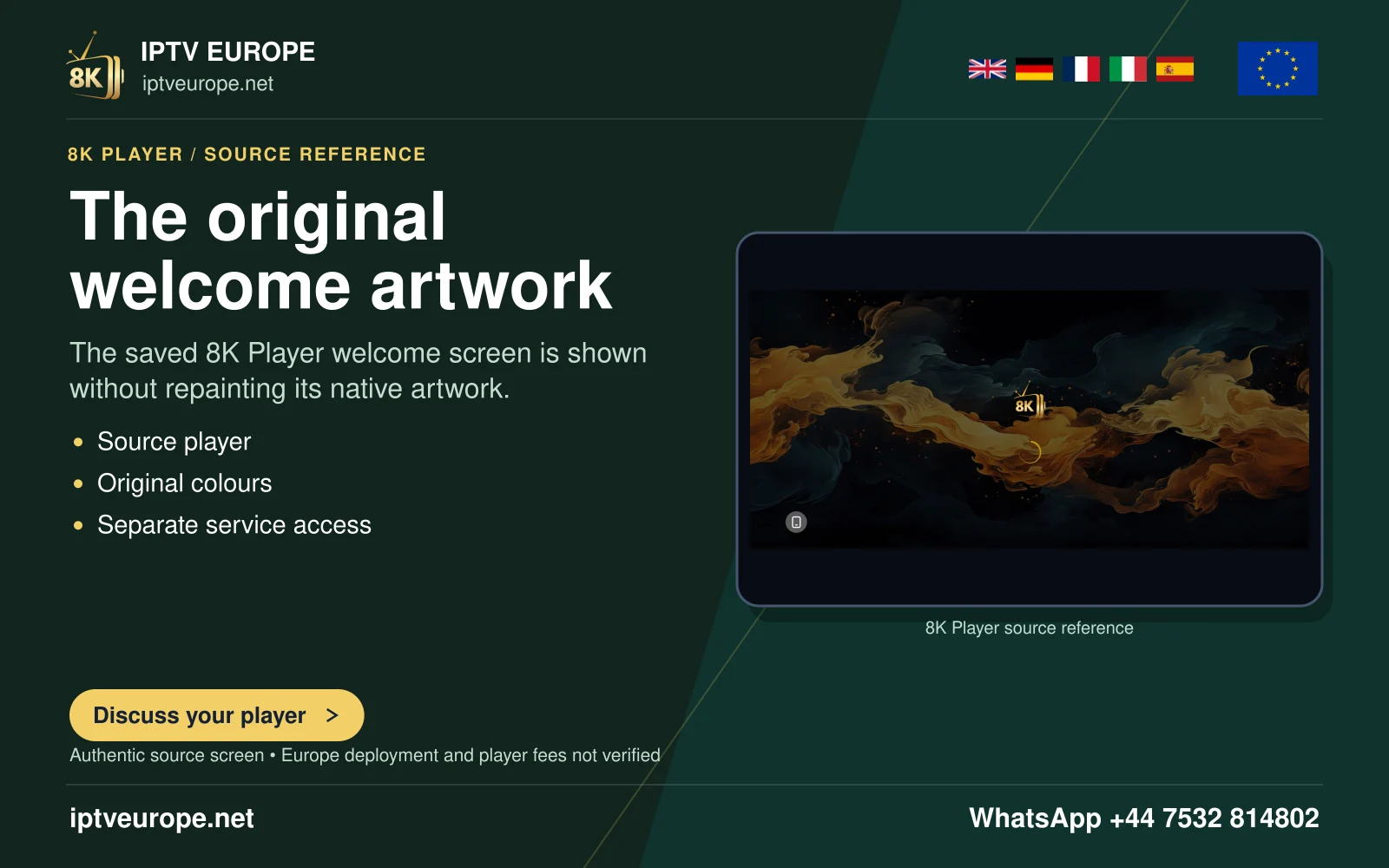
Follow the genuine developer or store route in each guide. App installation and a software licence are separate from IPTV Europe service access.
Create an OBS workspace for your own clips and demonstrations, with the scene layout and output configuration recoverable independently.
Read the guide →Choose how an owned video starts, ends and returns in OBS before relying on it during a recorded presentation.
Read the guide →Plan a usable listening mix and separate edit tracks when recording your own commentary and media in OBS.
Read the guide →Prepare an OBS Replay Buffer workflow that captures a recent authorized demonstration and produces a discoverable saved clip.
Read the guide →Prepare scene changes for an owned-media presentation while keeping the audience-facing output understandable.
Read the guide →Send the intended OBS composition to a connected display and verify what the audience actually receives.
Read the guide →Select Program, Preview, a fixed scene or a source for OBS Virtual Camera, then verify the receiving application.
Read the guide →Evaluate an OBS visual correction without losing the original file or confusing source-wide changes with a single scene layout.
Read the guide →Plan reused OBS sources and nested compositions so a later edit has an understood effect across your presentation.
Read the guide →Choose a local recording destination, finish an owned-media sample and validate a remuxed copy before handing it to another application.
Read the guide →Organize owned home videos in Channels DVR Server without applying a film or television matching workflow to unrelated recordings.
Read the guide →Build a Channels library collection with an understood membership rule and a useful browsing order.
Read the guide →Create a personal Channels guide entry from media already in your own library, with deliberate content order and clear household expectations.
Read the guide →Choose where personal library items appear in Channels and verify the result through ordinary browsing and collections.
Read the guide →Prepare a small authorized camera or personal stream input for Channels DVR Server with a stable identity and an understood guide label.
Read the guide →Plan a Channels DVR data-directory move to another drive with a clear stopping point and a verification sequence.
Read the guide →Prepare a Channels DVR Server move to another computer with recoverable state and a controlled client transition.
Read the guide →Create a deliberate viewing sequence across different personal-library media types in Channels.
Read the guide →Prepare server data, version records and a recovery decision before a Jellyfin upgrade.
Read the guide →Resolve album membership and disc order in a small music sample before importing the whole collection.
Read the guide →Model written books, audiobooks and associated metadata before a mixed personal reading library is scanned.
Read the guide →Choose and review Jellyfin directory exclusions without hiding finished media by accident.
Read the guide →Plan scans and maintenance tasks so their timing can be reviewed against mounts, playback and storage capacity.
Read the guide →Plan media, database and temporary storage as separate dependencies in a Jellyfin server.
Read the guide →Choose and review local music artwork without confusing embedded covers, folder images and online metadata.
Read the guide →Translate one viewing requirement into a Kodi library query with a checked inclusion boundary.
Read the guide →Choose a single set membership and an understandable viewing order for an existing Kodi movie library.
Read the guide →Customise a Kodi video-library entry while preserving navigation and a known route back to defaults.
Read the guide →Group alternate editions of one movie and choose an intentional default on a supported Kodi release.
Read the guide →Review Kodi music identities after scanning embedded tags and before scraping supplementary information.
Read the guide →Choose eligible music for continuous Kodi Party Mode and review the limits of a small pool.
Read the guide →Create a small named mpv configuration profile and define what happens when it is applied or restored.
Read the guide →Build and validate a small virtual sequence from selected portions of local media you control.
Read the guide →Attach and identify external audio for a controlled local narration review.
Read the guide →Plan request tracking, event parsing and access boundaries for a local mpv controller.
Read the guide →Review an owned interlaced sample while keeping deinterlacing and other filter changes separate.
Read the guide →Use the VLC desktop 3.0 Media-menu interface to pair an authorised narration file with its exact picture edit and review timing.
Read the guide →Configure VLC desktop 3.0 Windows instance behaviour for two separate local review sessions.
Read the guide →Check navigation and intended scene directions in an authorised equirectangular 360 video.
Read the guide →Check a single authorised recording from guide selection through a usable completed file.
Read the guide →Match a recurring schedule to the actual programme pattern and available guide metadata.
Read the guide →Schedule guide refreshes with clear source dependencies and an overlap review.
Read the guide →Inspect all applicable Tvheadend access entries before changing one account permission.
Read the guide →Verify an authorised recording and make an intentional copy before a destructive library action.
Read the guide →Check guide-search membership before creating a repeating Tvheadend recording rule.
Read the guide →Install the official PVR client route and prove channels, guide matching and playback as separate milestones.
Read the guide →Follow the clsid2 project trail and establish the active renderer and tracks before adding external filters.
Read the guide →Use the official project’s distribution trail and distinguish local file opening from an authorized URI.
Read the guide →Use the official package route and distinguish the interface, playback engine and per-file remembered settings.
Read the guide →Use KDE’s official package trail and verify sibling-file loading and playlist behavior before adding online dependencies.
Read the guide →Use the official client listing and verify server login, supported video libraries and playback as separate stages.
Read the guide →Use the current Windows or Linux project route and distinguish library browsing from remote-control and background behavior.
Read the guide →Use the documented Live TV configuration and verify an authorized channel before scheduling or enlarging the catalogue.
Read the guide →Use the Live TV M3U route with a real station resource and distinguish a named channel from a general webpage.
Read the guide →Use the official repository and decide who owns Kodi’s database before connecting the server.
Read the guide →Use the documented Android touch interface and verify server discovery, credentials and media playback separately.
Read the guide →Use the actual mpv.net package and distinguish its GUI configuration from standalone mpv and optional online helpers.
Read the guide →Identify the project and output route before enabling hardware decoding or optional online helpers.
Read the guide →Use Apple’s documented file controls and Movie Inspector to establish a source result before diagnosing another player or network input.
Read the guide →Choose SS IPTV’s documented playlist route, preserve the existing source and check one known item on a supported television.
Read the guide →Enable IPTVnator’s desktop-hosted remote on a trusted local network, open the correct address and verify one channel command.
Read the guide →Plan a versioned IPTVnator backup, protect both computer profiles and verify restored sources without assuming the JSON includes downloads or every setting.
Read the guide →Choose a built-in, embedded or external IPTVnator playback route around the required media task and control behavior.
Read the guide →Identify the genuine TiviMate player, match the supplied source format and separate a loaded channel list from successful playback.
Read the guide →Use the genuine Android player on a phone, tablet or TV, then separate local playback from a Chromecast receiver test.
Read the guide →Use the publisher’s current distribution links and choose playlist, Xtream or portal input from the information actually supplied.
Read the guide →Use Firecore’s documented browser upload route for offline iOS playback, with the right distinction between copied files and network libraries.
Read the guide →Use the maintainer’s desktop build, choose URL, file or pasted text, and understand the browser version’s XMLTV limit.
Read the guide →Use the official manual’s input model, keep package origin clear, and separate a command-line player from a provider portal.
Read the guide →Use the genuine macOS application, test local media first and identify which part of an online workflow depends on a plugin.
Read the guide →Use the moneytoo project’s actual file and external subtitle workflow, with network storage handled by an appropriate source app.
Read the guide →Identify the HKAB player and match playlist, tuner or server input before assessing guide, timeshift and recording.
Read the guide →Follow Jellyfin’s server wizard, verify a small personal media library, then connect the appropriate viewing client.
Read the guide →Distinguish hosting an Emby media library from joining an existing server, and understand what optional Emby Connect does.
Read the guide →Identify the genuine Nova Android app, connect an existing media share and keep WebDAV host, port and path in their correct fields.
Read the guide →